For homes with a housekeeper, a nanny, a gardener, a caregiver—or all of them. Household Pay keeps each person’s hours, what you owe, and what you’ve paid in one private ledger on your phone.
Granny Nanny. A warm welcome from Granny Nanny, with gentle illustrations throughout your records.
“I hire help at home and pay staff for their hours.”
Your household, at a glance
Real Android app. Sample household.
Every feature, explained
From the first shift to a settled payday.
Screens shown on iPhone with sample data. Android has the same features; where a label differs, we say so.
iOS01 / OVERVIEW
Everything due, on one screen.
The first screen you see
What you owe, at a glance.
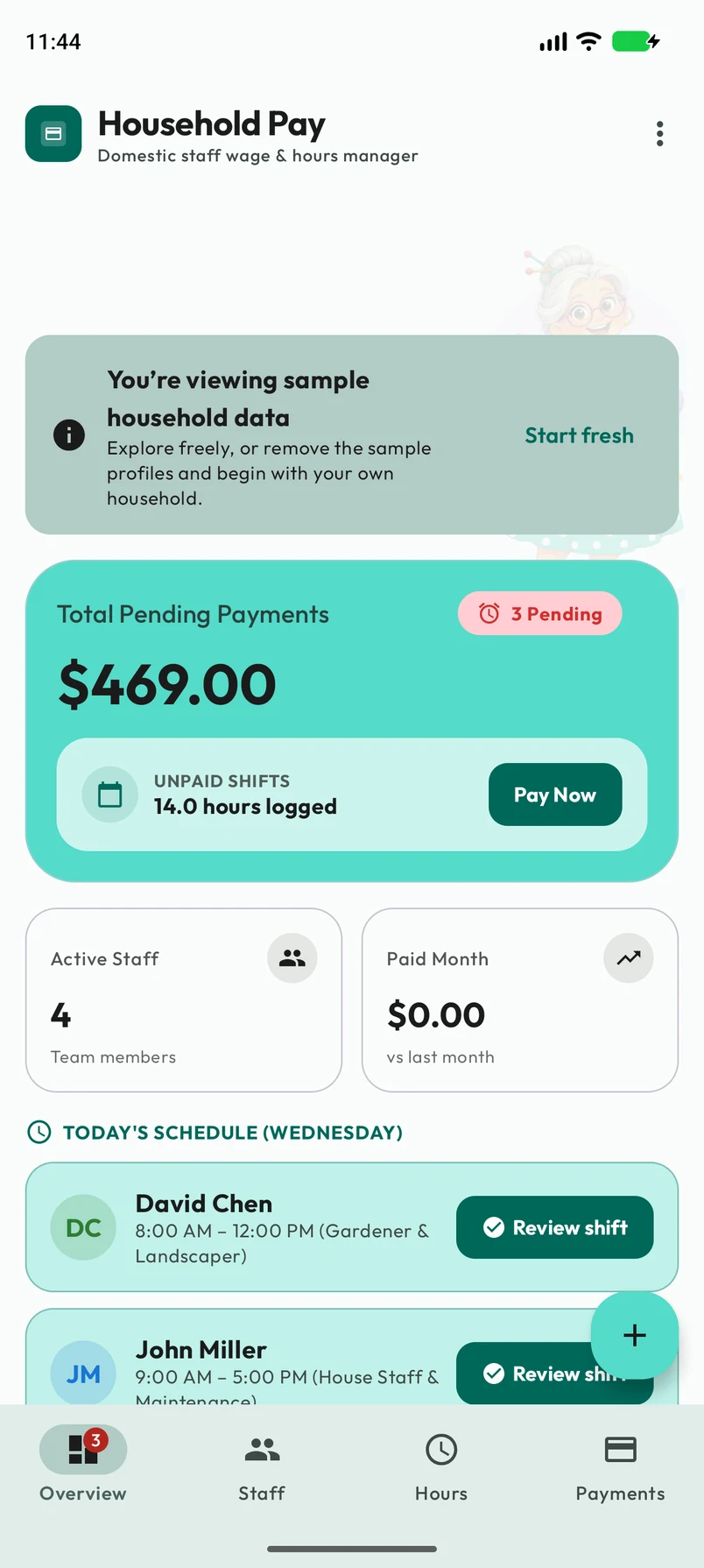
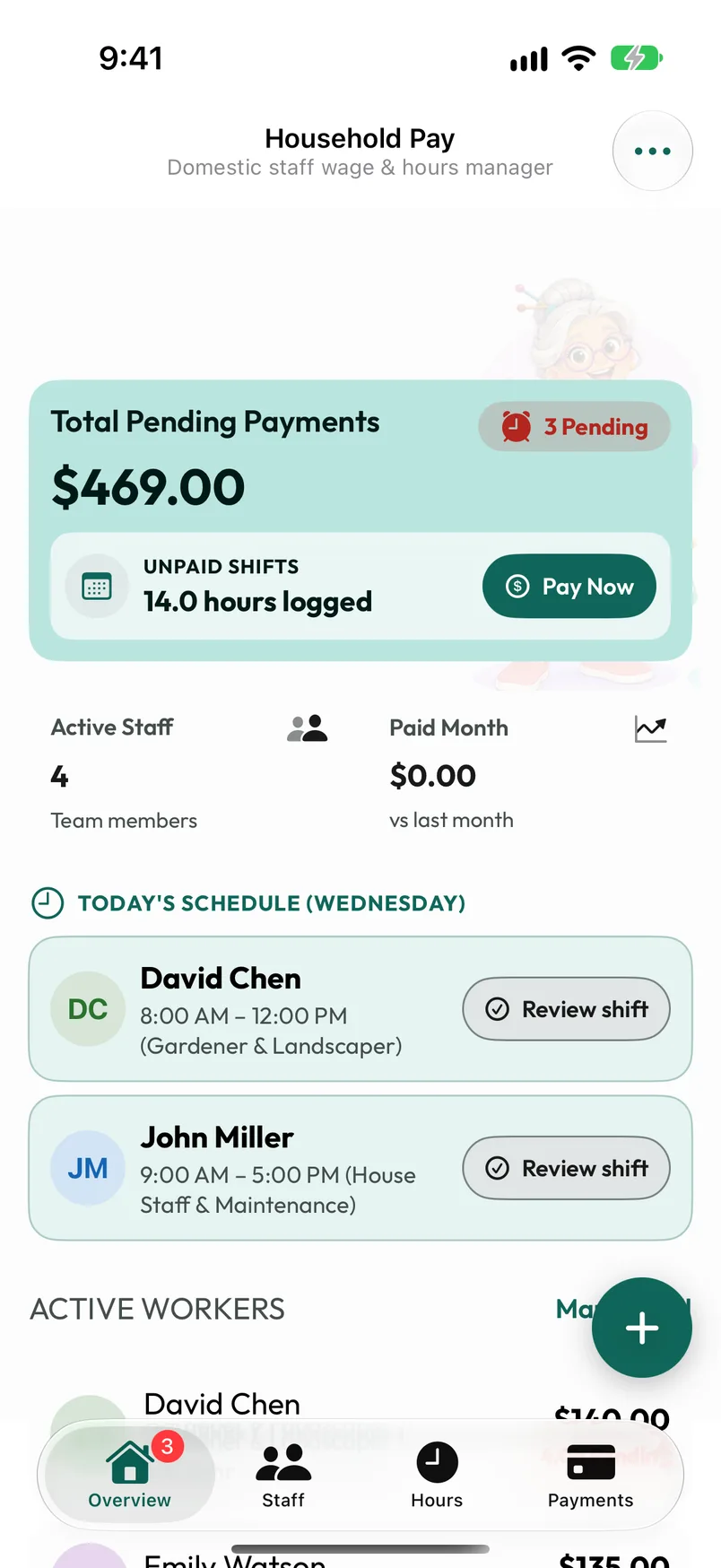
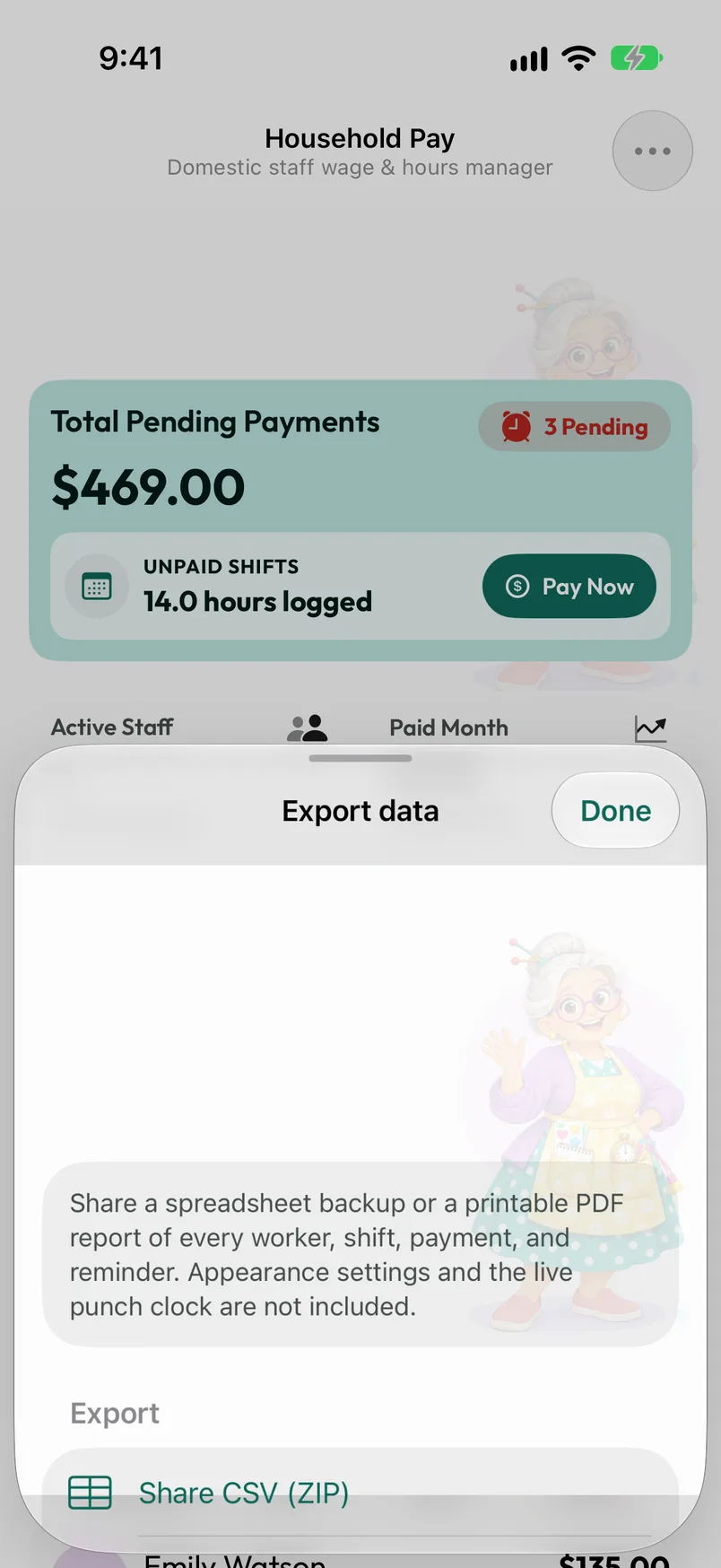
Overview opens on Total Pending Payments: every unpaid shift added up, with the hours behind it. Pay Now takes you straight to recording a payment.
◷
Today’s schedule
See who is due to work today and use Review shift to log their usual hours in one tap.
↗
Your team and this month
Active Staff and Paid Month, compared with last month, plus each person’s pending amount.
+
Quick actions
The plus button logs hours, records a payment, adds staff, sets a reminder, or changes the theme.
iOS02 / STAFF
The people who keep home running.
Your team, in one place
Everyone who keeps home running.
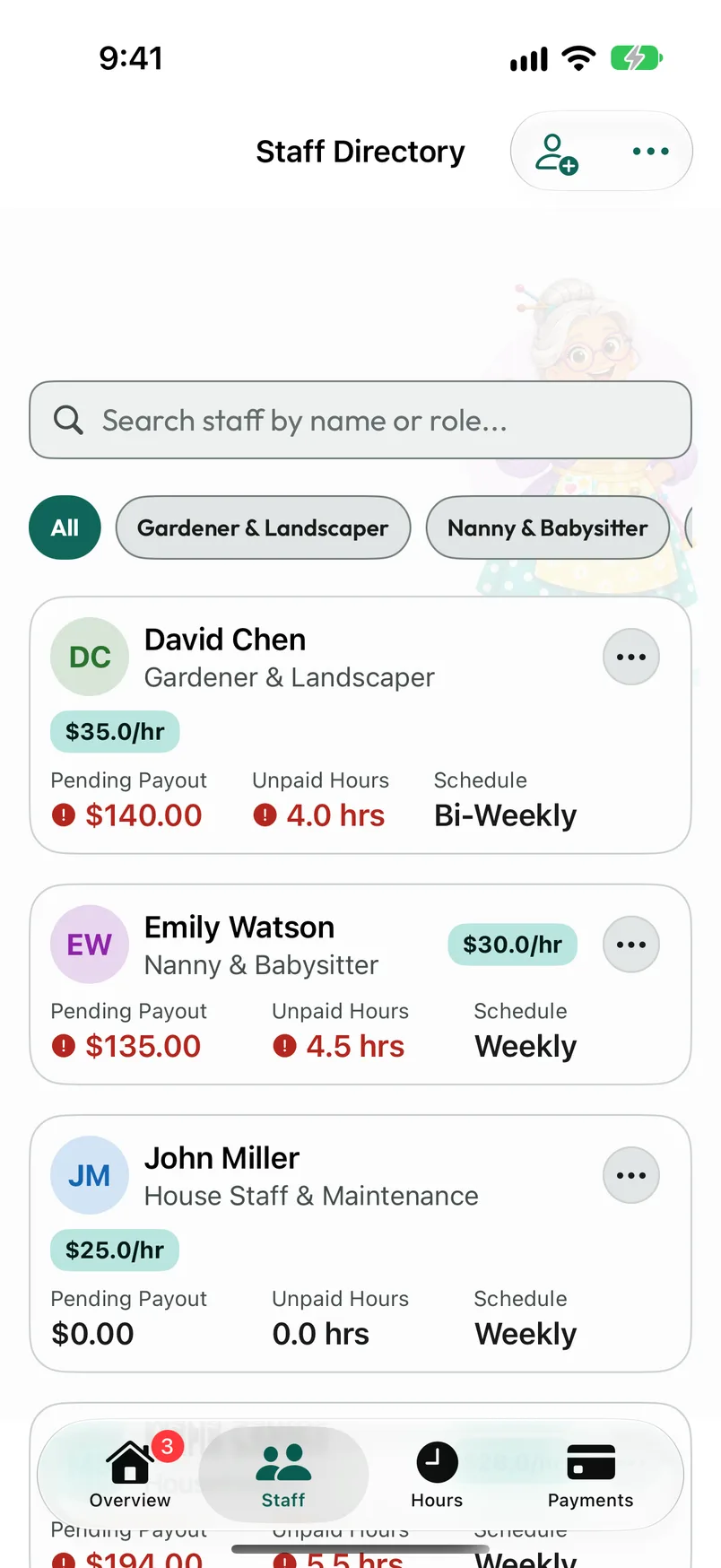
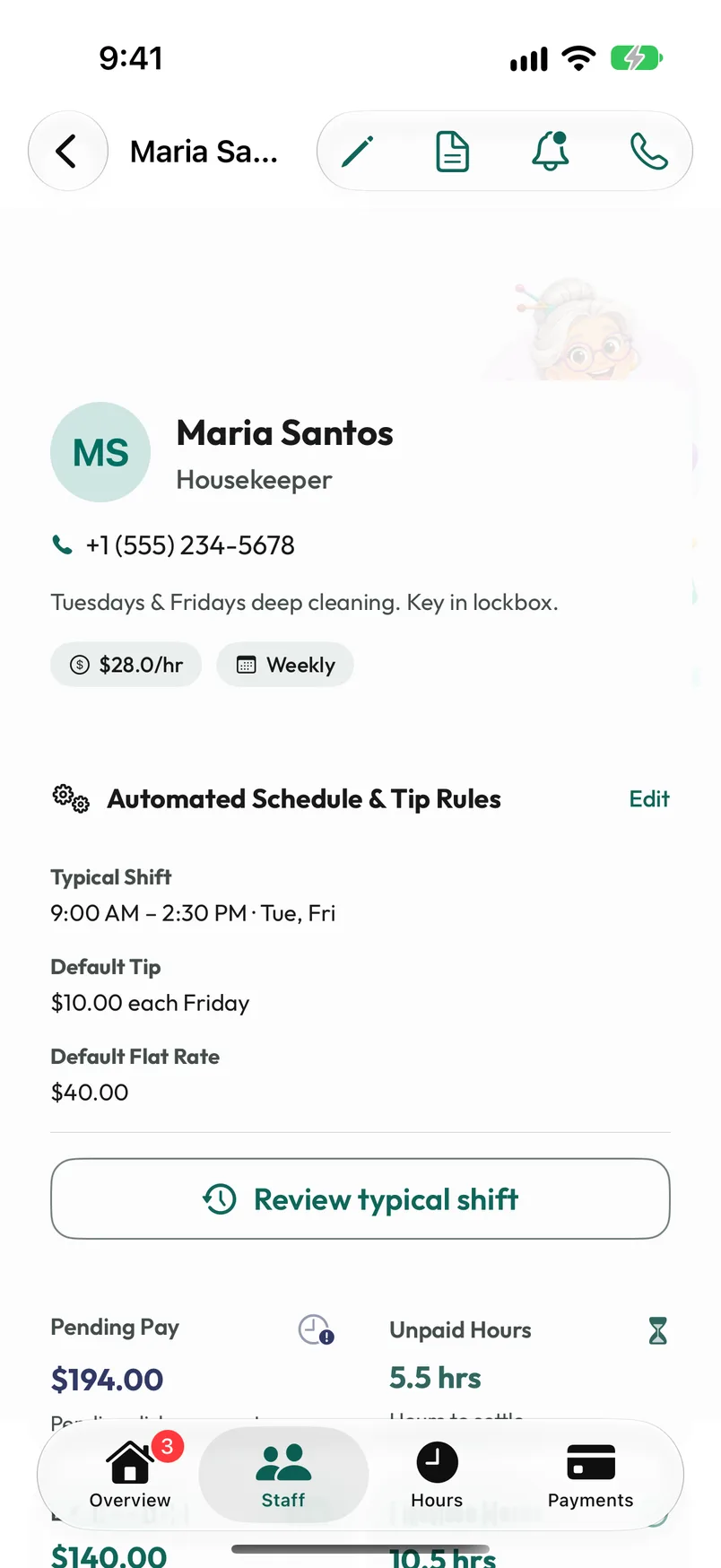
The Staff Directory keeps each person’s role, hourly rate, phone number, notes, and how often you settle their pay. Search by name or role, or filter with the role chips.
◷
A typical shift
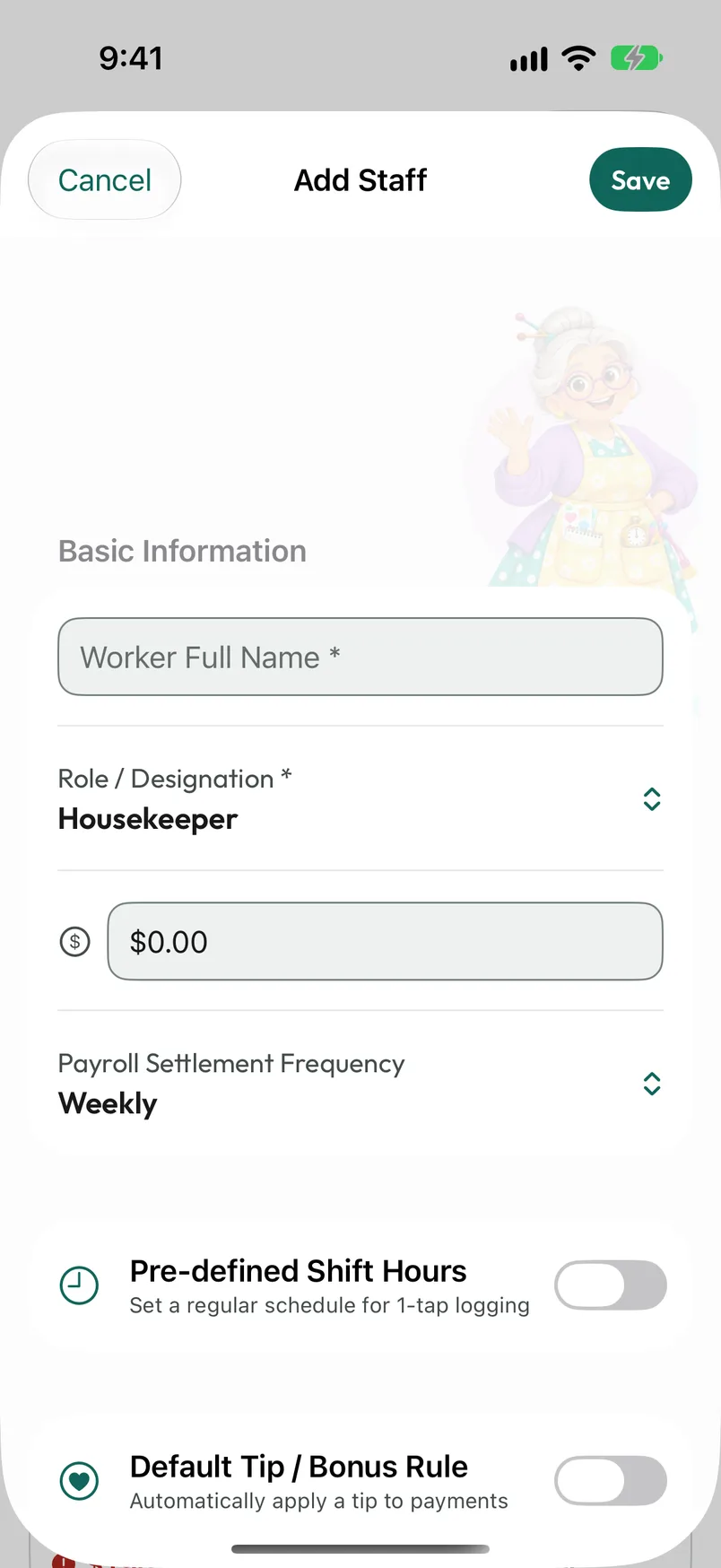
Turn on Pre-defined Shift Hours to set usual days and times for one-tap logging.
+
Tips and flat amounts
Apply a default tip or bonus on a chosen day, and set a flat single-payment amount for one-off jobs.
✓
Keep history
Mark someone inactive to keep their records. Deleting a person also deletes their shifts and payments.
On Android, open Staff → Add staff.
iOS03 / STATEMENTS
One person, the whole story.
Look closer at each person
One person, the whole story.
Open anyone to see pending pay, unpaid hours, lifetime totals, a week-and-month comparison, and their full shift and payment history.
≡
Statements
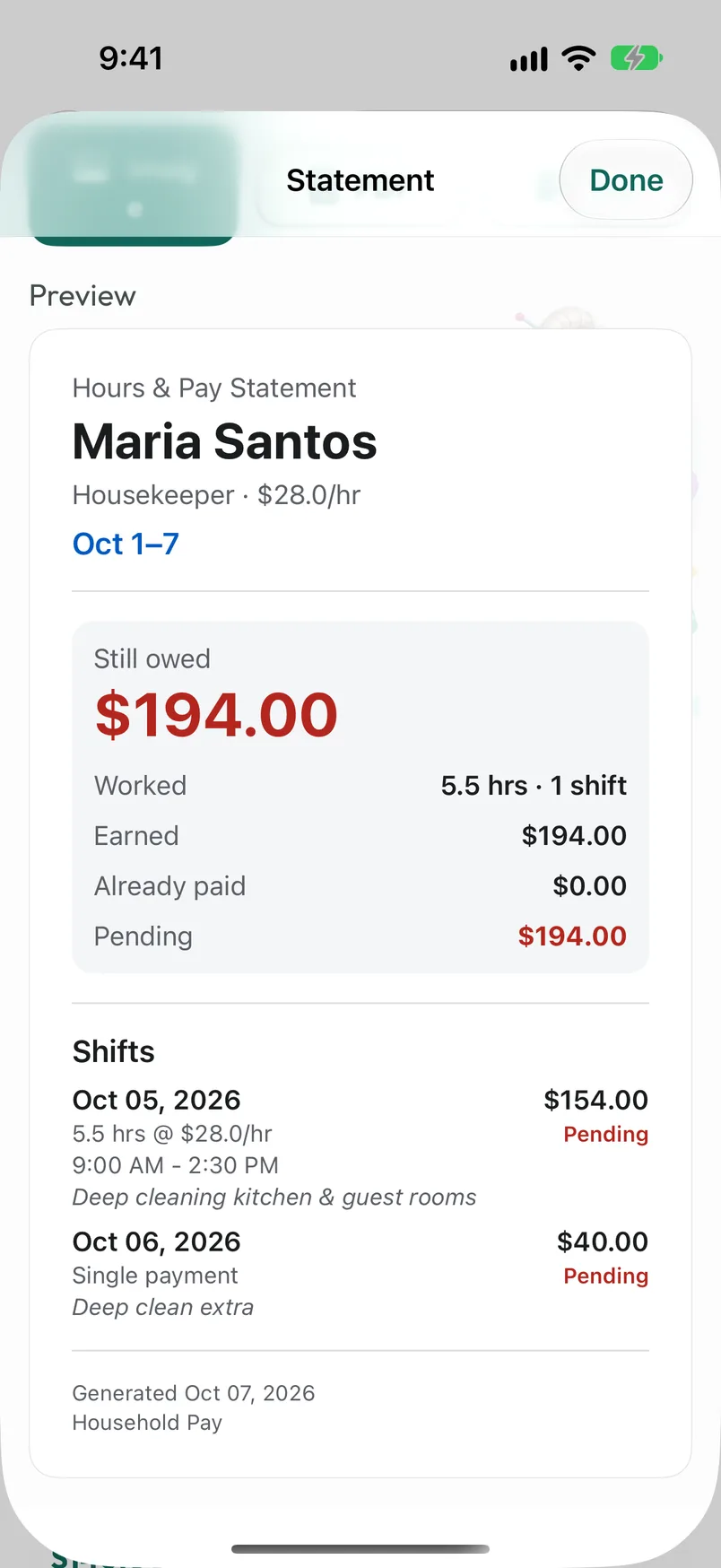
Pick this month, last month, the last 30 days, or custom dates, then send the statement as an image, PDF, or text.
×
Pay rules
Optional overtime, after daily or weekly hours, and premium days such as weekends, each with its own multiplier.
↗
Everything from one screen
Call, set a pay reminder, log hours, edit details, or Settle Pay.
iOS04 / HOURS
Every shift has its place.
For the regular days & the extra hours
Log hours your way.
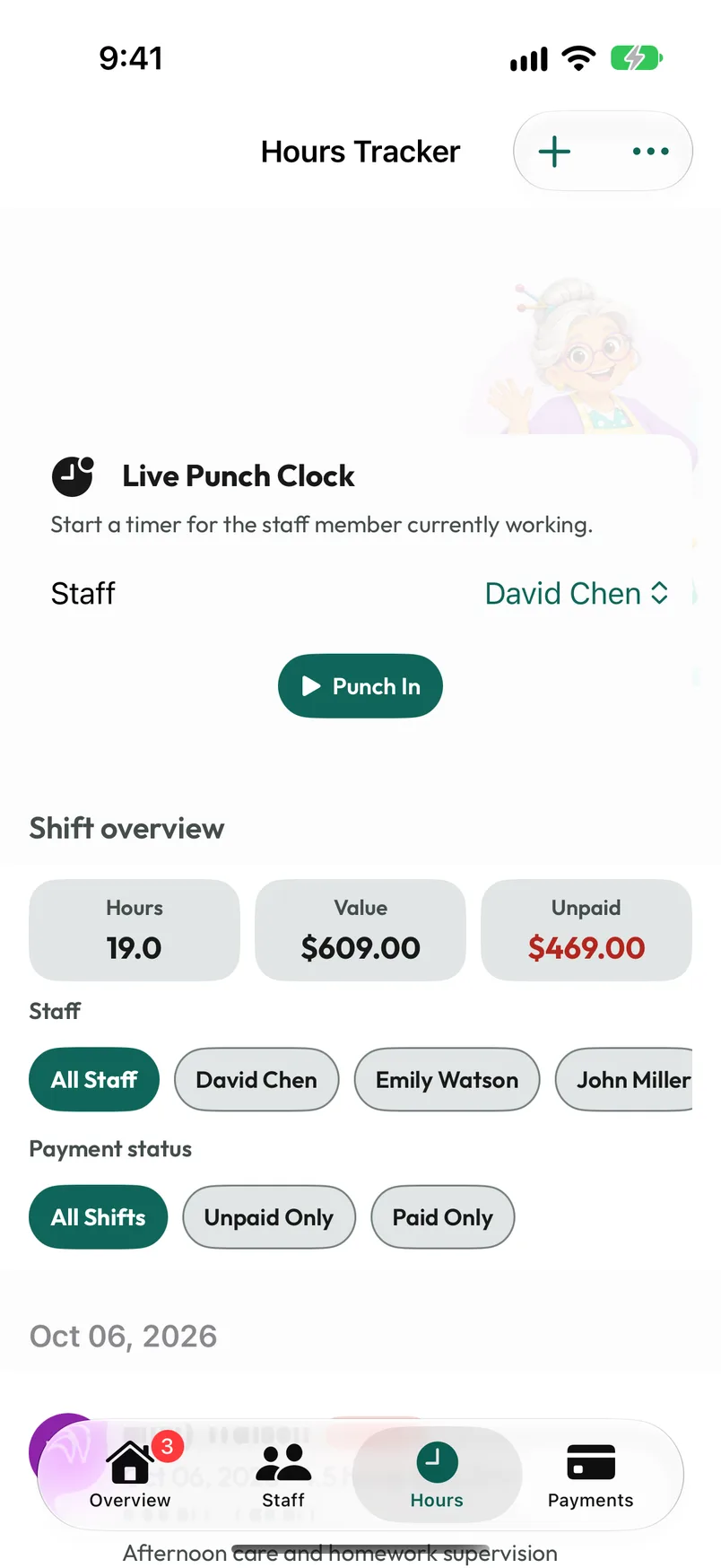
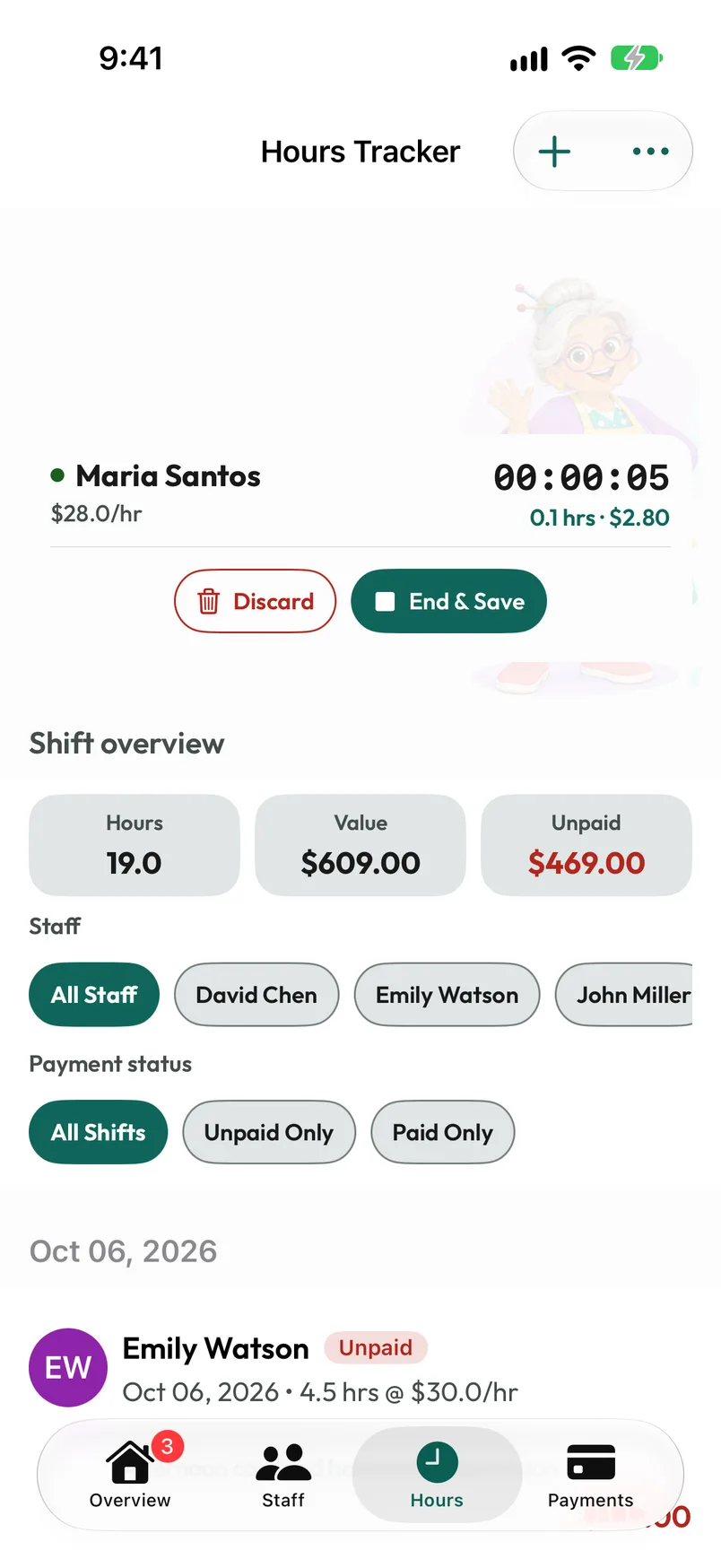
The Hours Tracker lists every shift with running totals for hours, value, and what’s still unpaid. Filter by person, or show only paid or unpaid work.
↗
Hours, Times, or Payment
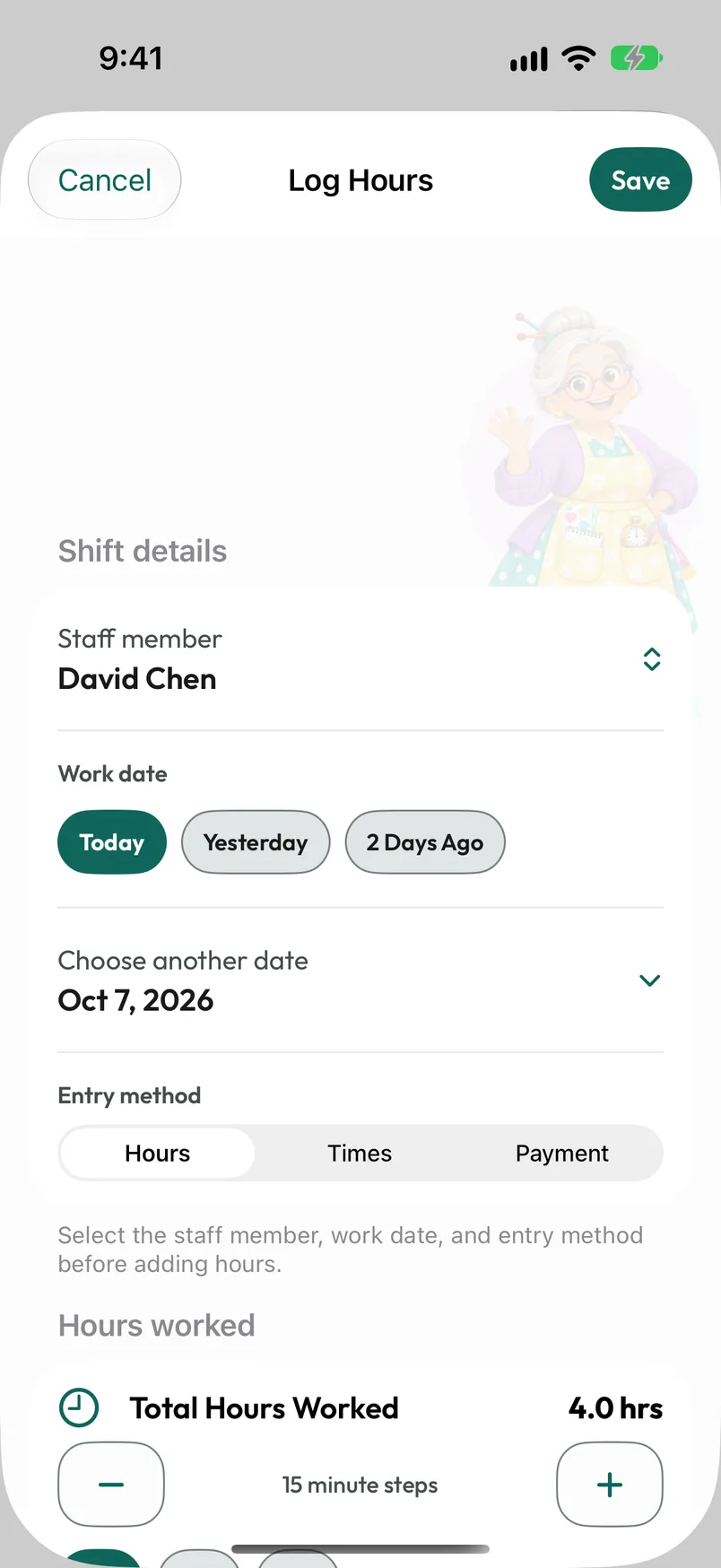
Enter a total, start and end times—shifts that run past midnight included—or a flat amount for a one-off job.
+
The little extras
Add a tip or round the shift up, and keep a note of what was done.
◷
Quick dates
Today, Yesterday, 2 Days Ago, or any date you choose.
On Android, the flat-amount option is called Single payment.
iOS05 / PUNCH CLOCK
Punch in as they arrive.
Working right now?
Start the clock. Stop guessing.
Choose a person and tap Punch In. The live timer shows the time and value so far, and stays visible above the tab bar on every screen until you End & Save or Discard.
◷
One shift at a time
A running shift belongs to the profile it started in. Switch profiles and it keeps running there.
⌂
Stays on this device
Active timers aren’t synced or exported. Finish them before you change devices.
On Android, choose Punch Out & Review, check the result, then Save shift.
iOS06 / PAYMENTS
A record for every payday.
A clear record
Record payday, link the work.
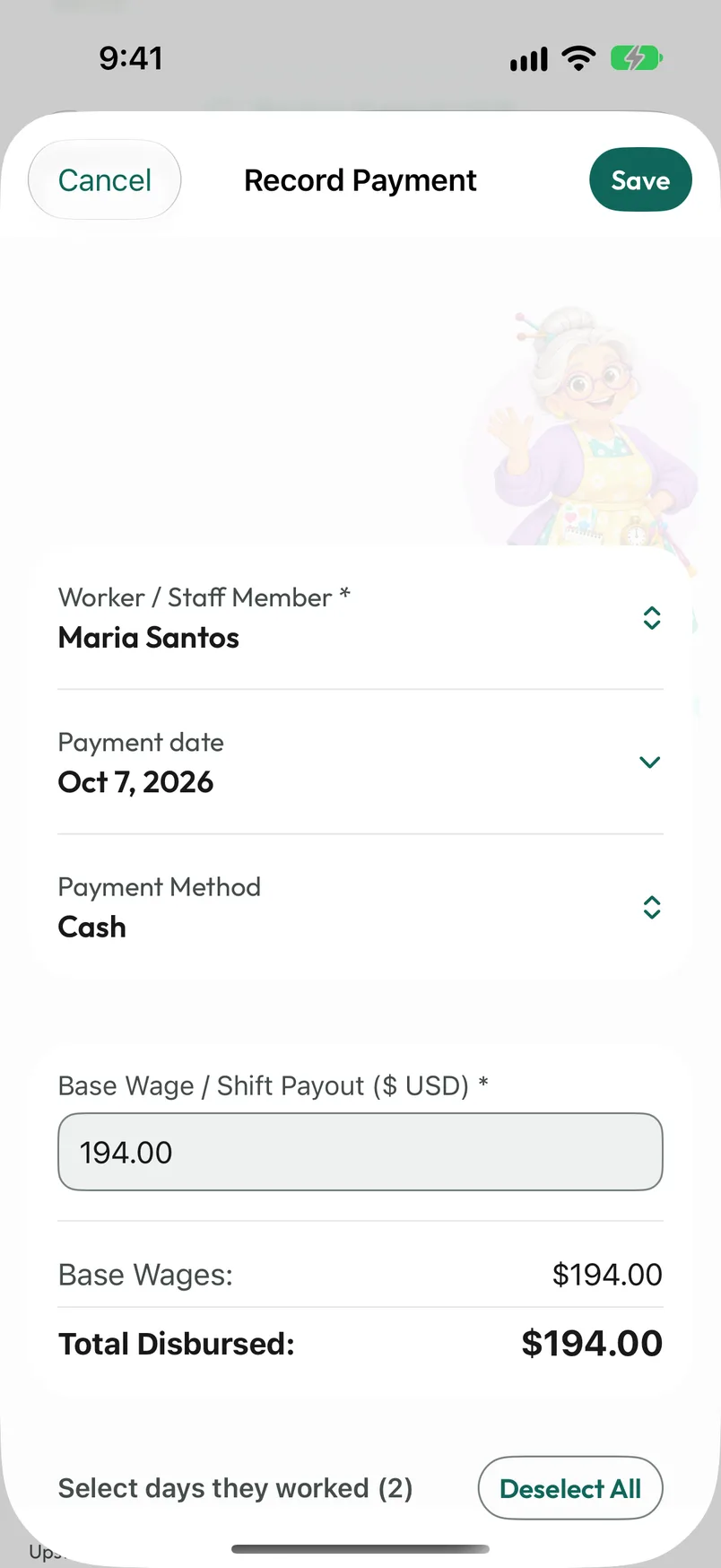
Pay the way you always do, then record it. Choose the person and their unpaid shifts are selected for you. Check the base wage, tip, date, and method—cash, Zelle, Venmo, bank transfer, and more—then save.
✓
Shifts marked paid
Saving marks the covered shifts paid. Deleting the payment makes them unpaid again.
≡
A ledger you can filter
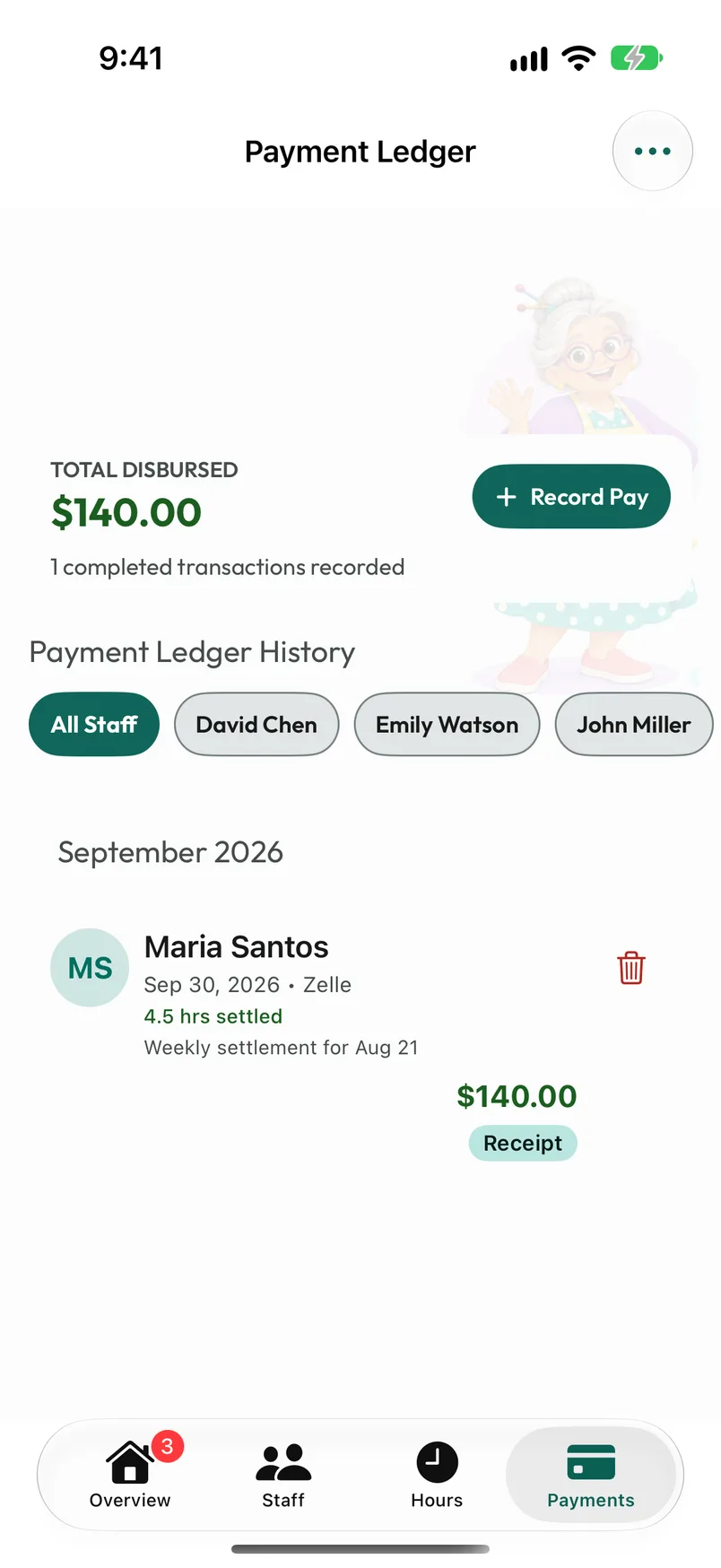
Every payment with its method and notes, filtered by person or method, under Total Disbursed.
Household Pay records payments. It never moves money or connects to your bank.
iOS07 / RECEIPTS
A thoughtful finish.
Close the loop
A receipt for every payday.
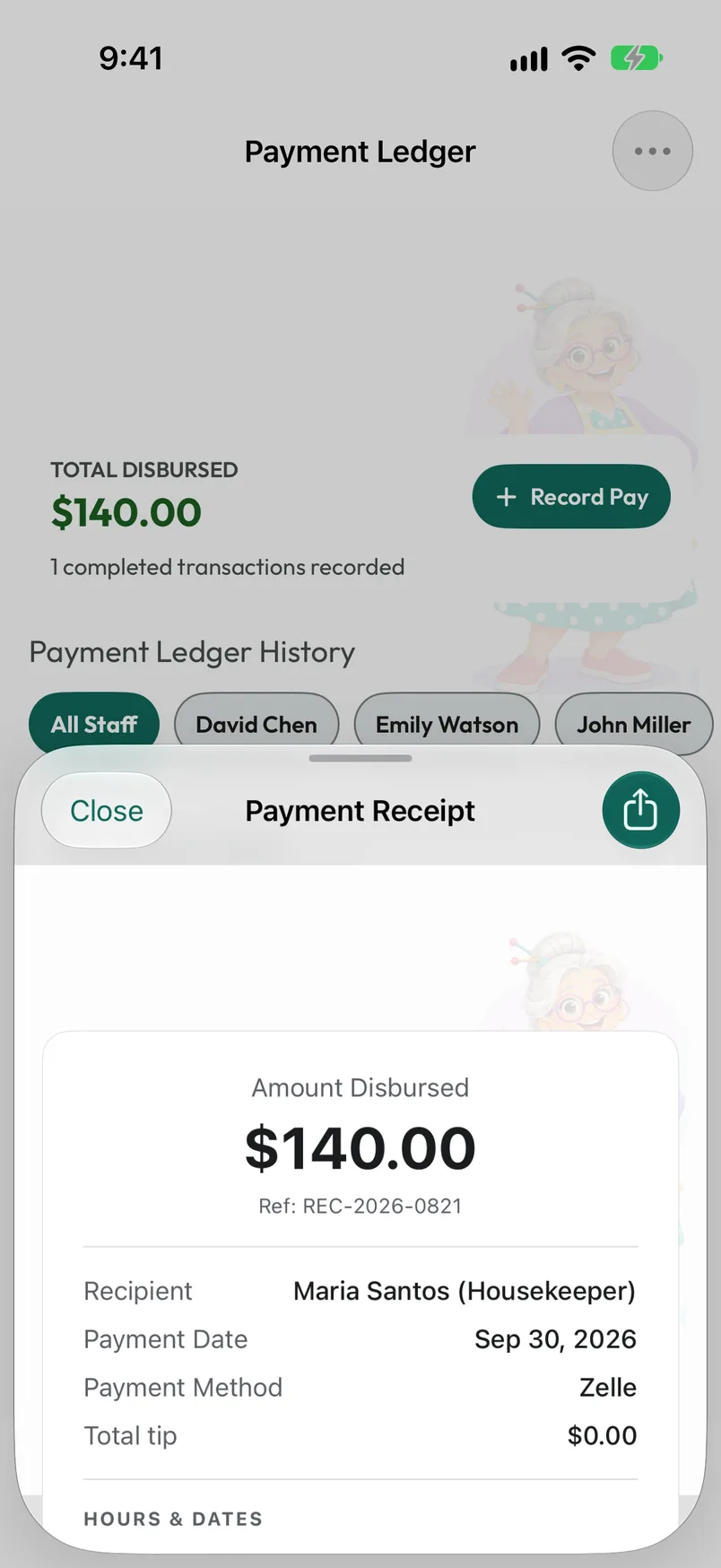
Every payment gets a paper-style receipt with its own REC- reference, the recipient, date, method, tip, and the hours and dates it settled.
↗
Share it
Tap a payment, then the share button, to send the receipt as an image through any app on your phone.
✓
No app needed to read it
Your staff don’t need Household Pay. Check the recipient before sending; a shared copy can’t be recalled.
iOS08 / REPORTS
A little perspective.
Step back & see the whole picture
Know where the month went.
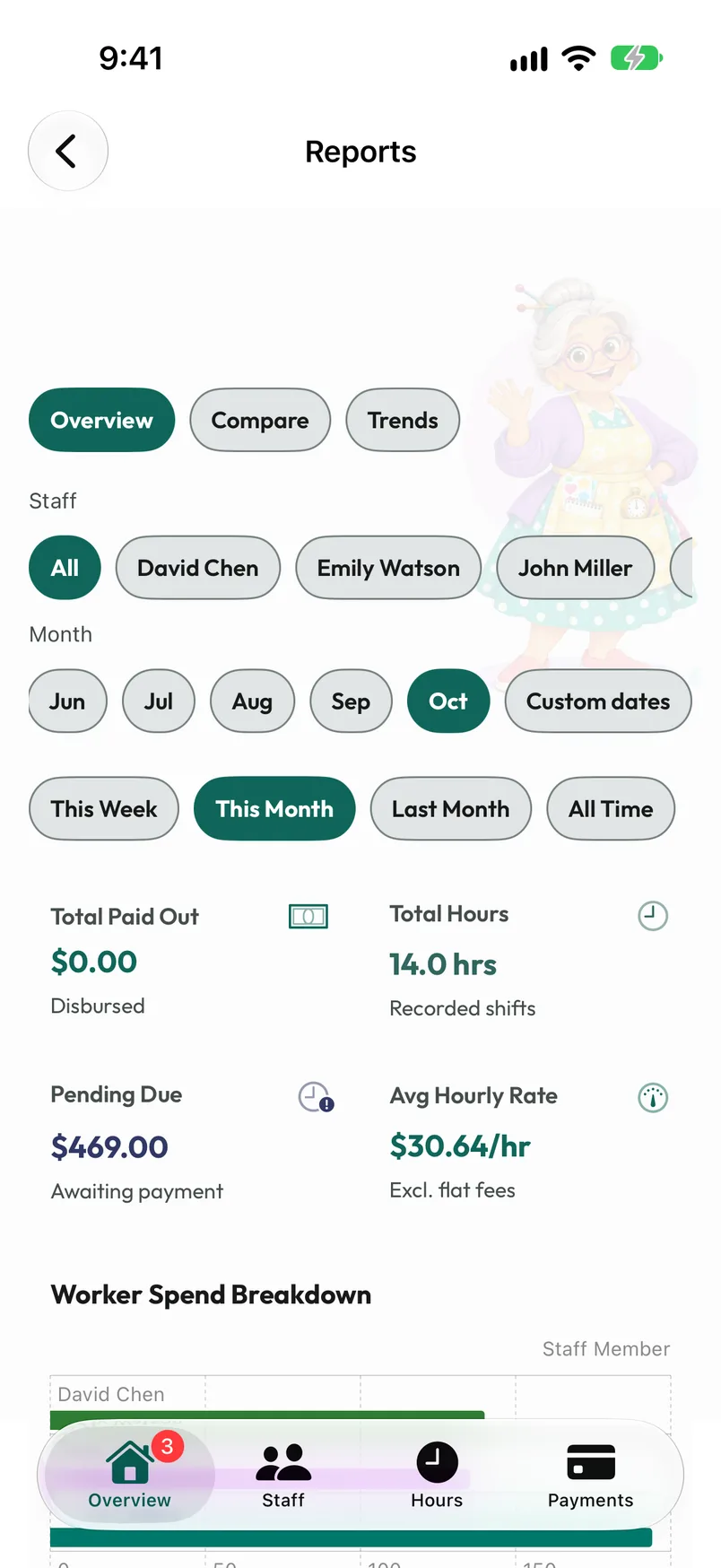
Open More → Reports for three views: Overview totals, Compare for week-over-week and month-over-month, and Trends over time.
↗
Filter what you see
By person, by month, this week, last month, all time, or custom dates.
≡
Spend by person
Total paid out, hours, what’s still pending, and your average hourly rate.
iOS09 / REMINDERS
Remember the next payday.
A gentle nudge
Never miss a payday.
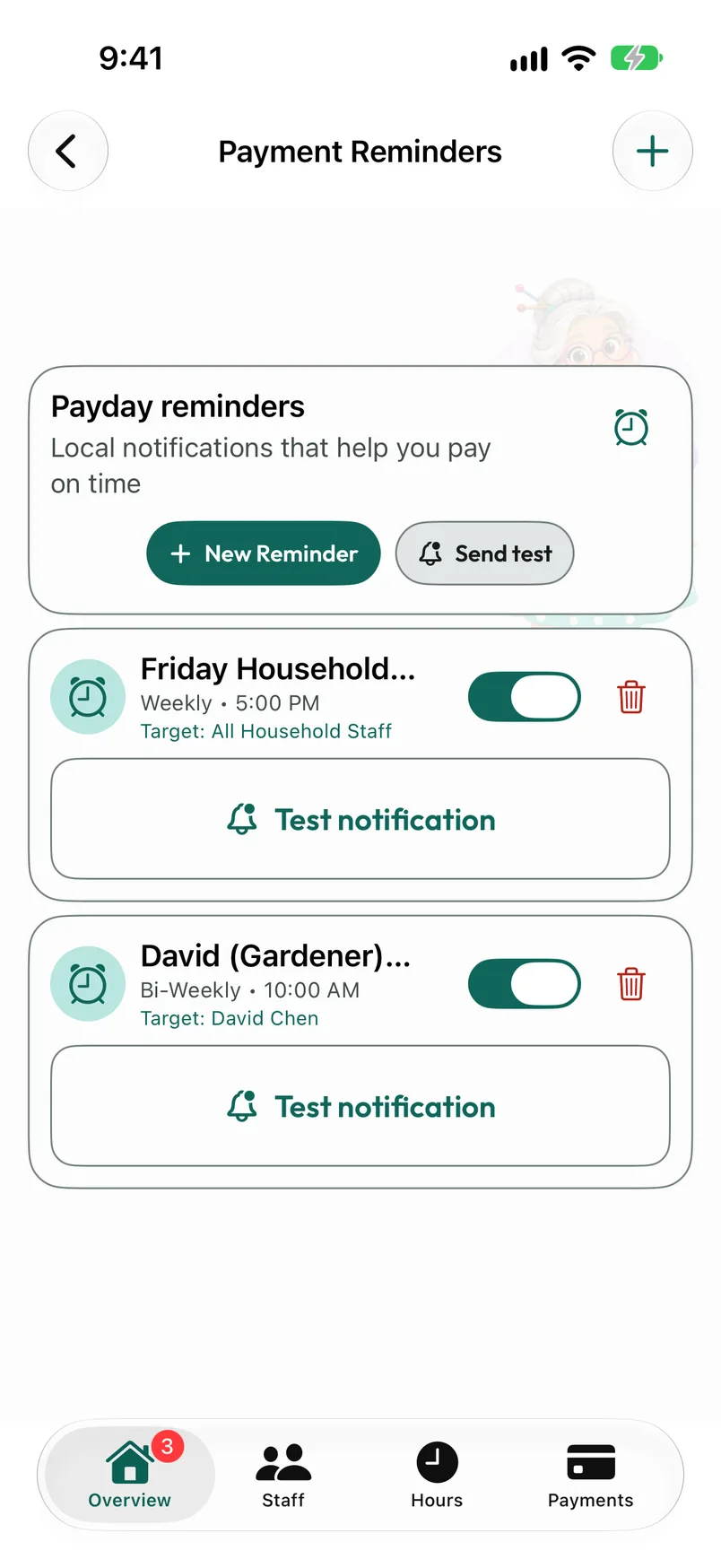
Open More → Payment reminders to schedule local notifications—daily, weekly, bi-weekly, or monthly—for one person or all household staff.
◷
See it before it arrives
The form previews the notification, and Send test checks that notifications are allowed.
↗
Opens the right place
Tapping a Household reminder opens the Household profile, even if you were using Staff GIG.
iOS10 / EXPORT & BACKUP
Your records, when you need them.
Take them with you
Export it. Back it up.
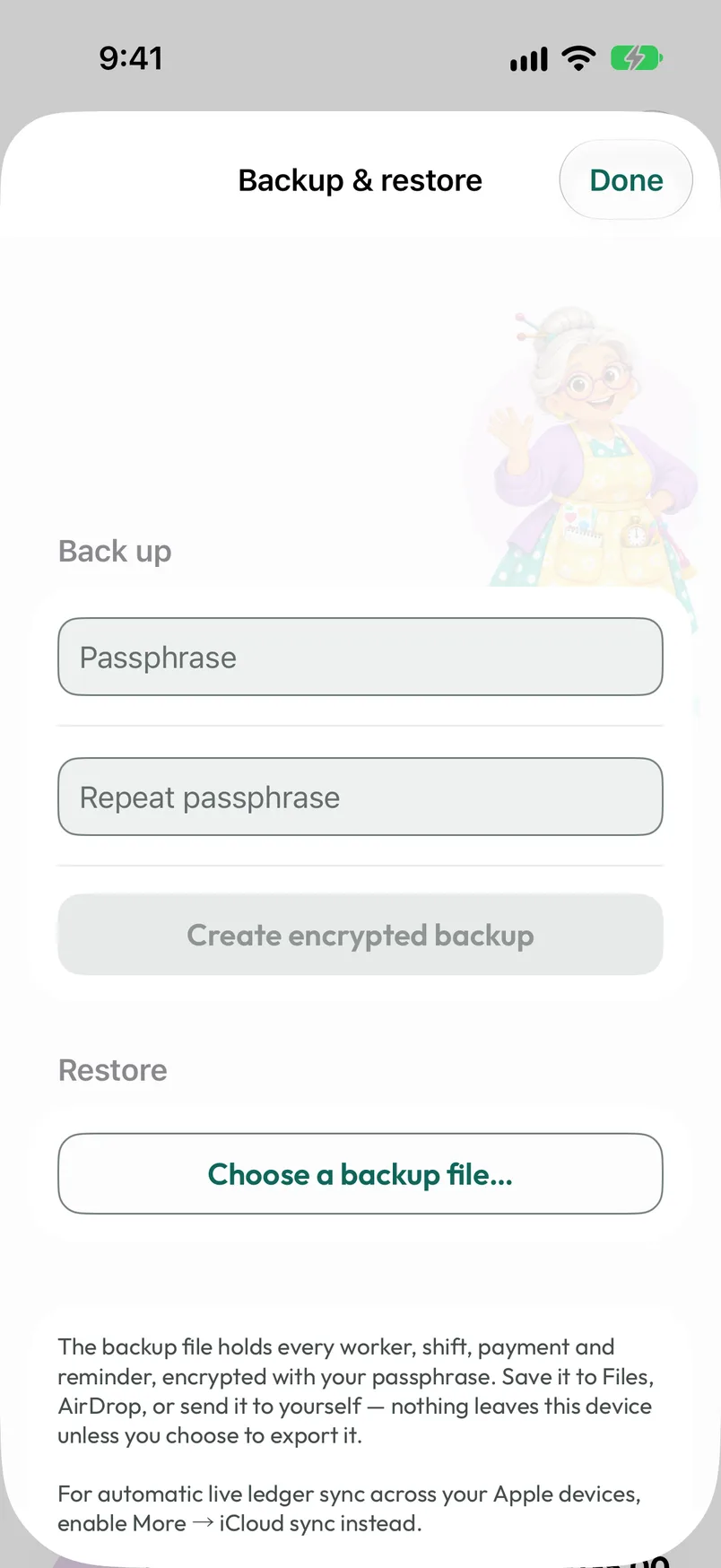
More → Export data shares a PDF report or a ZIP of CSV files for spreadsheets. More → Backup & restore creates a file encrypted with your passphrase that you can restore later.
⌂
Household records only
Exports and backups contain the Household profile. Staff GIG records are never included.
!
Restoring replaces
After a Replace everything? confirmation, a restore replaces your Household records. It doesn’t merge them.
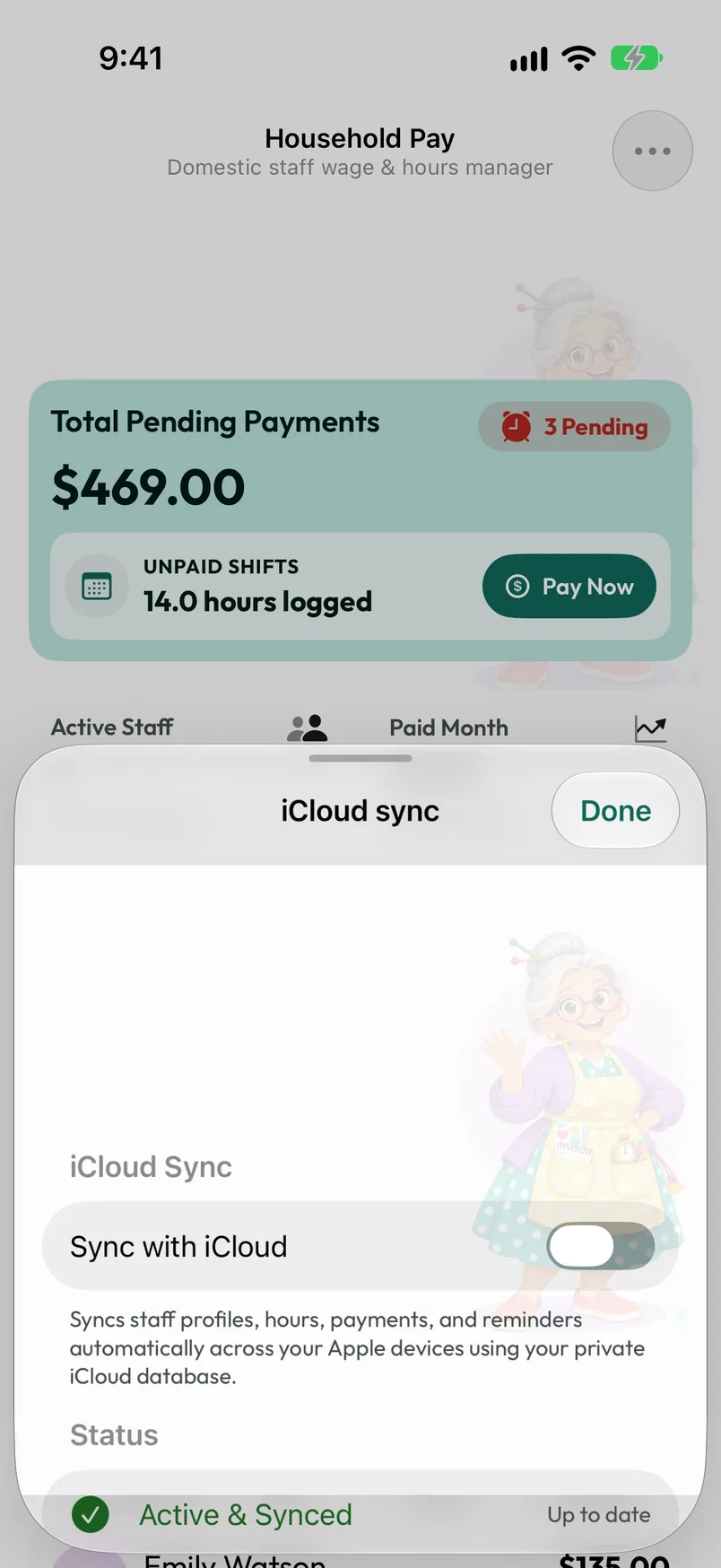
On iPhone and iPad, More → iCloud sync keeps your records on your Apple devices through your private iCloud database. On Android, More → Cloud sync uses private Google Drive app storage.
○
Off until you turn it on
Everything works offline without sync.
↔
One platform at a time
iCloud and Google Drive are separate. Records don’t sync between iOS and Android.
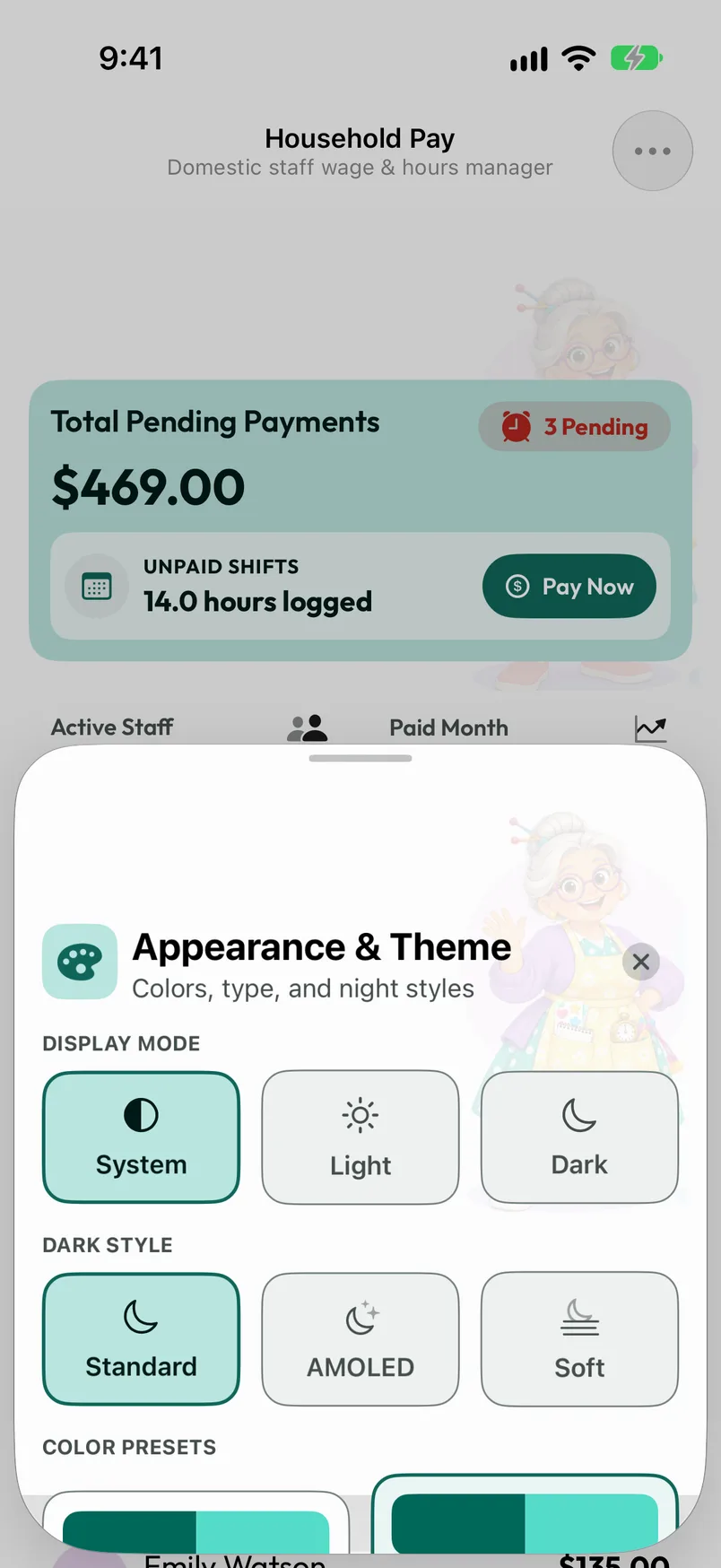
More → Appearance offers light, dark, or system mode; standard, AMOLED, or soft dark styles; color presets or your own palette; and a choice of typefaces.
¤
Any currency
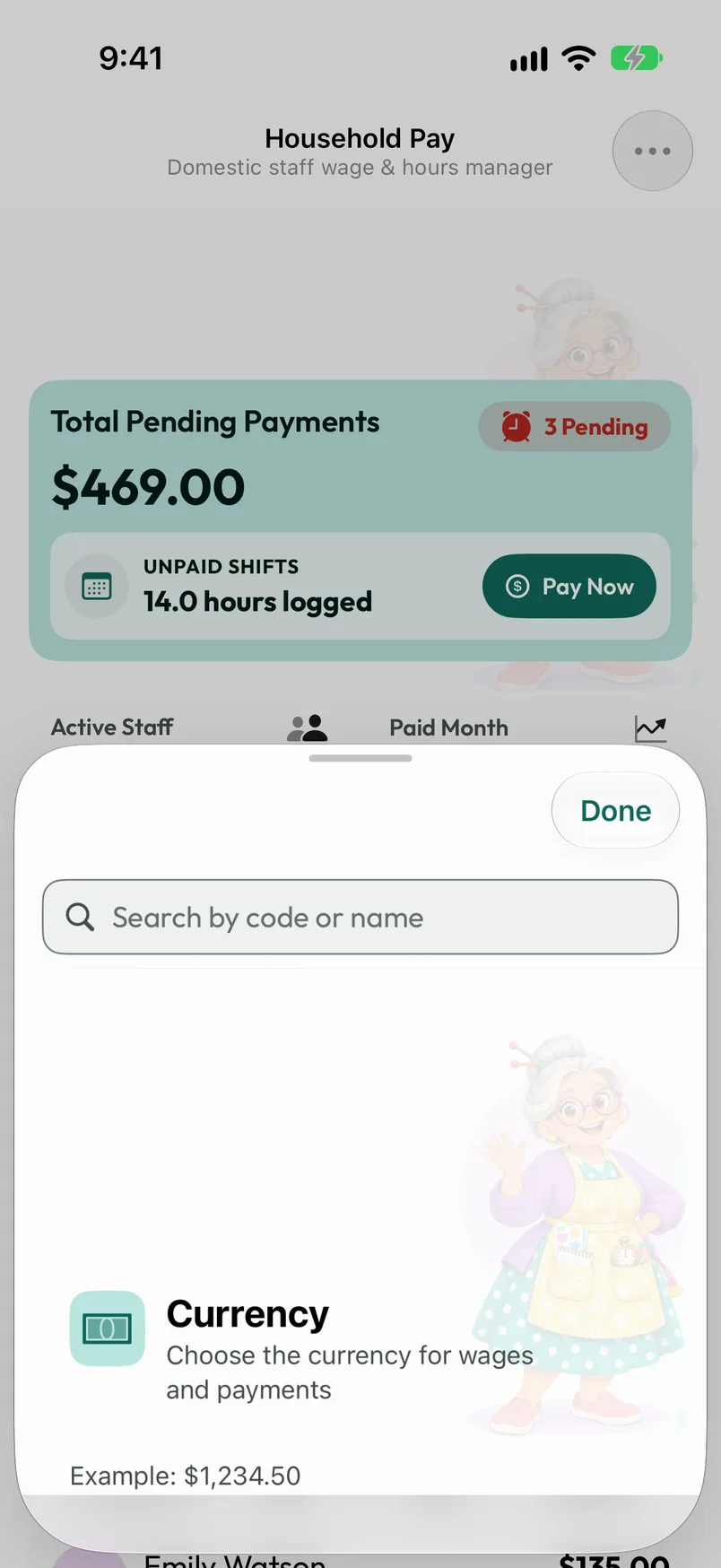
More → Currency sets the currency for your amounts. Changing it relabels amounts; it never converts them.
✳
For the whole app
Theme and currency apply to both profiles on this device.
iOS13 / PRIVACY
What is shared, and what never is.
No account required
Your records stay yours.
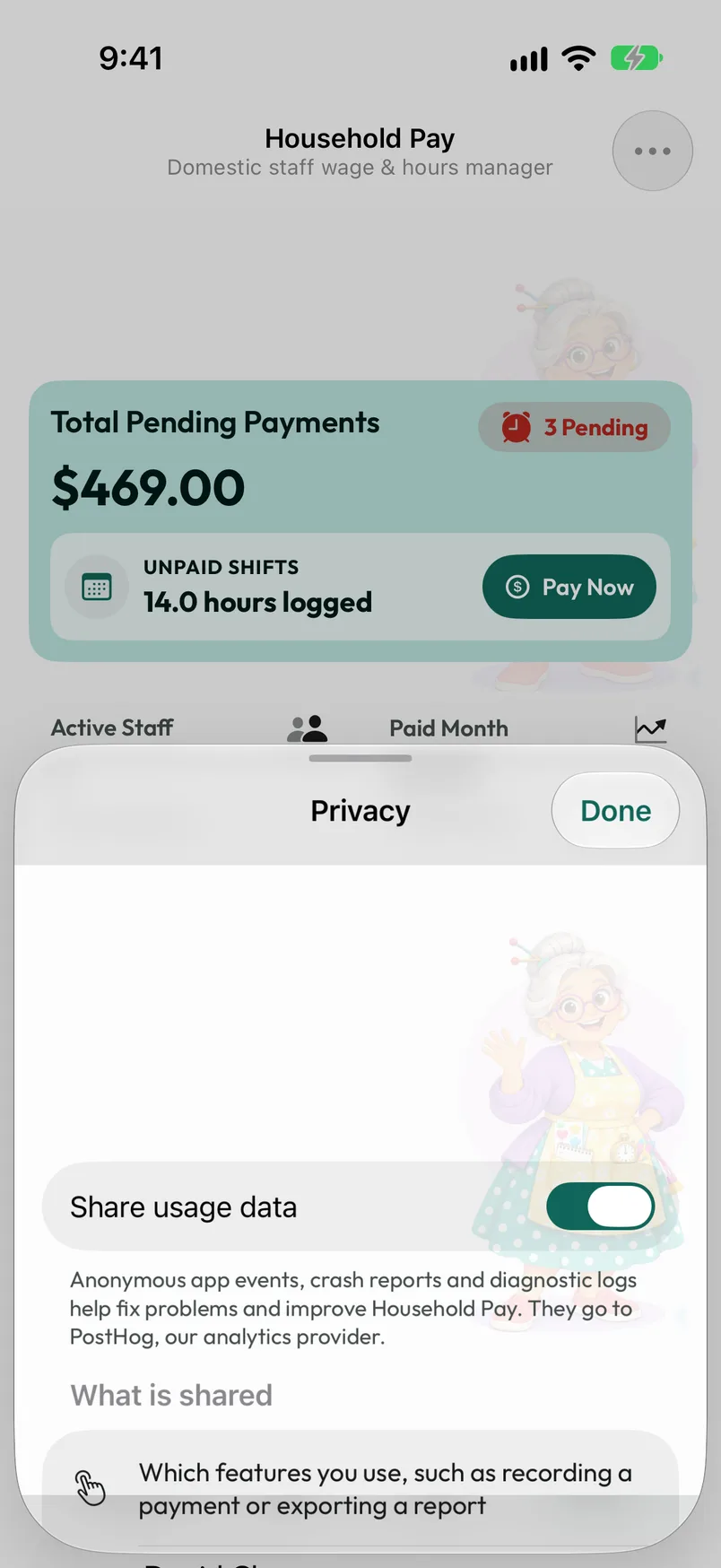
There’s no Household Pay account, and your records are stored on your device. Names, phone numbers, notes, and amounts are never sent to us.
○
Usage data is your choice
Anonymous app events and crash reports help fix problems. Turn them off in More → Privacy → Share usage data.
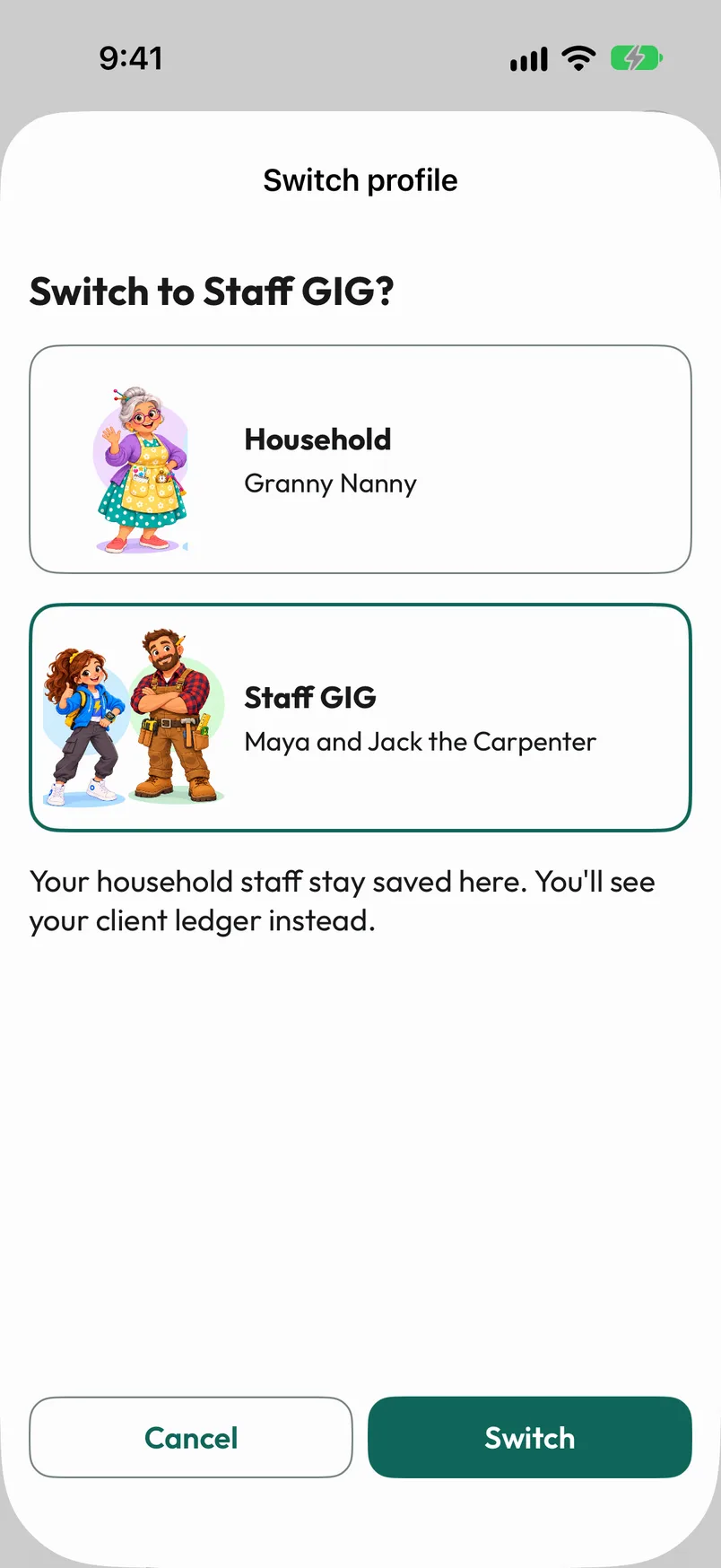
Choose More → Profile to switch to Staff GIG. Your household staff stay saved here, and Staff GIG opens its own separate client ledger. Switch back any time.
↔
Kept apart
Lists, reports, badges, reminders, exports, and backups only ever show the profile you’re in.
Sparky can rest below your overview and celebrate when you save new hours or payment records. Turn him on or off in More → Sparky companion, or choose during onboarding.
One choice applies to both profiles. He adds no chores, streaks, sounds, or balance-based reactions. The people in the background remain part of the app’s design.
Screenshots show sample data on iPhone. Layout and appearance vary by device, platform, and your chosen theme.
Your privacy choices
We use optional Google Analytics cookies to understand visits and improve this website. Analytics stays off until you accept. Cookies and website analytics.